The best way to read in the language you're learning
Better voices in Readlang
May 25, 2026Readlang now has a new set of high quality voices you can choose from for both Auto-Translate (previously Speaking Mode) feature, as well as for speaking whole texts with Read Aloud.
Previously, the voice used when you tap a word (Speaking Mode) and the voice used when you press play on the Read Aloud bar were two completely separate systems. The tap-a-word voice came from a paid Microsoft Azure service. The Read Aloud voice came from whatever your browser had installed. They had different settings, different speed controls, and there was no way to pick which voice to use.
Now there’s a single voice picker for each language, with all the available voices listed in one place:
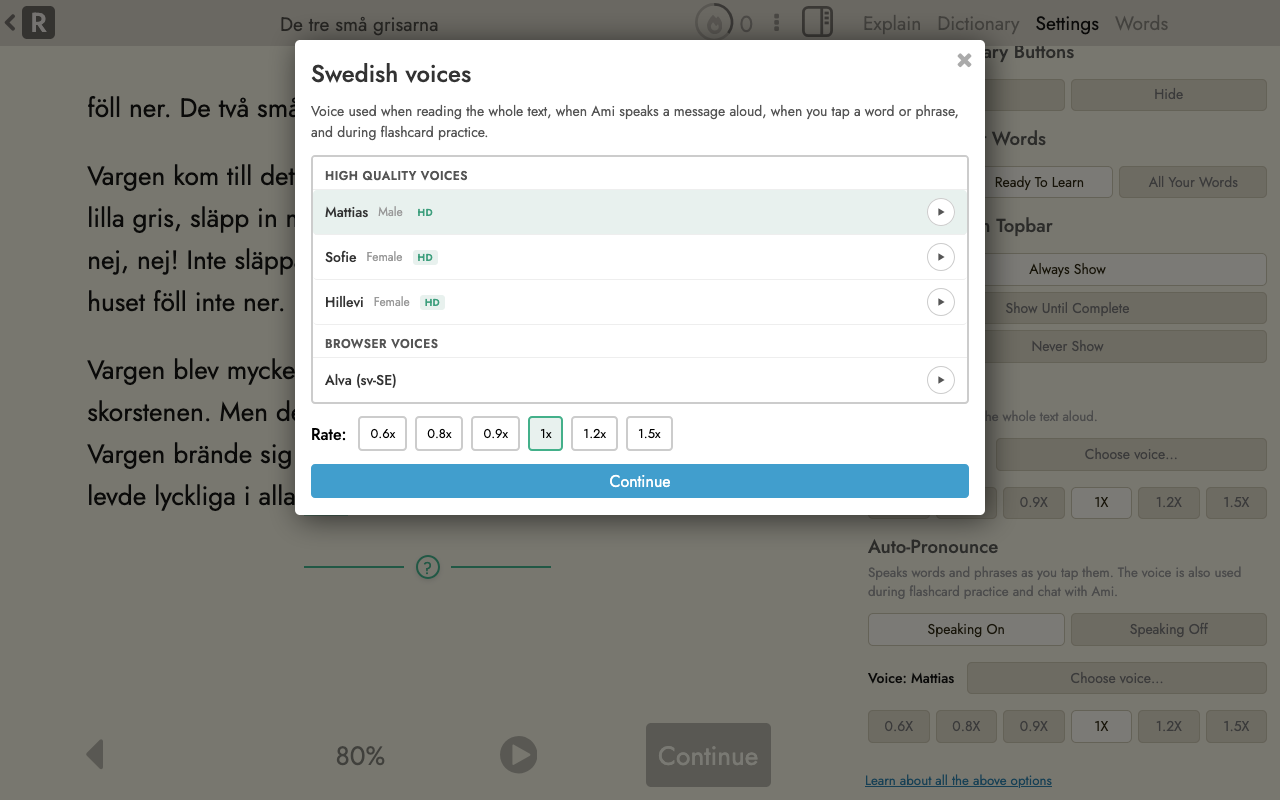
You can change it at any time from the reader page sidebar, under Settings. There are two pickers so you can choose a different voice for the two features:
- Auto-Pronounce is used when you tap a word or phrase, when Ami speaks a chat message, and during flashcard practice.
- Read Aloud is used when you press play to listen to the whole text.
The voice and speed you pick are saved per language, so picking Mattias once for Swedish means you’ll keep hearing Mattias on every Swedish text, flashcard and chat from now on.
For some languages you can also pick the regional accent you want. Spanish has voices for both Spain and Mexico, and Portuguese has voices for both Portugal and Brazil:
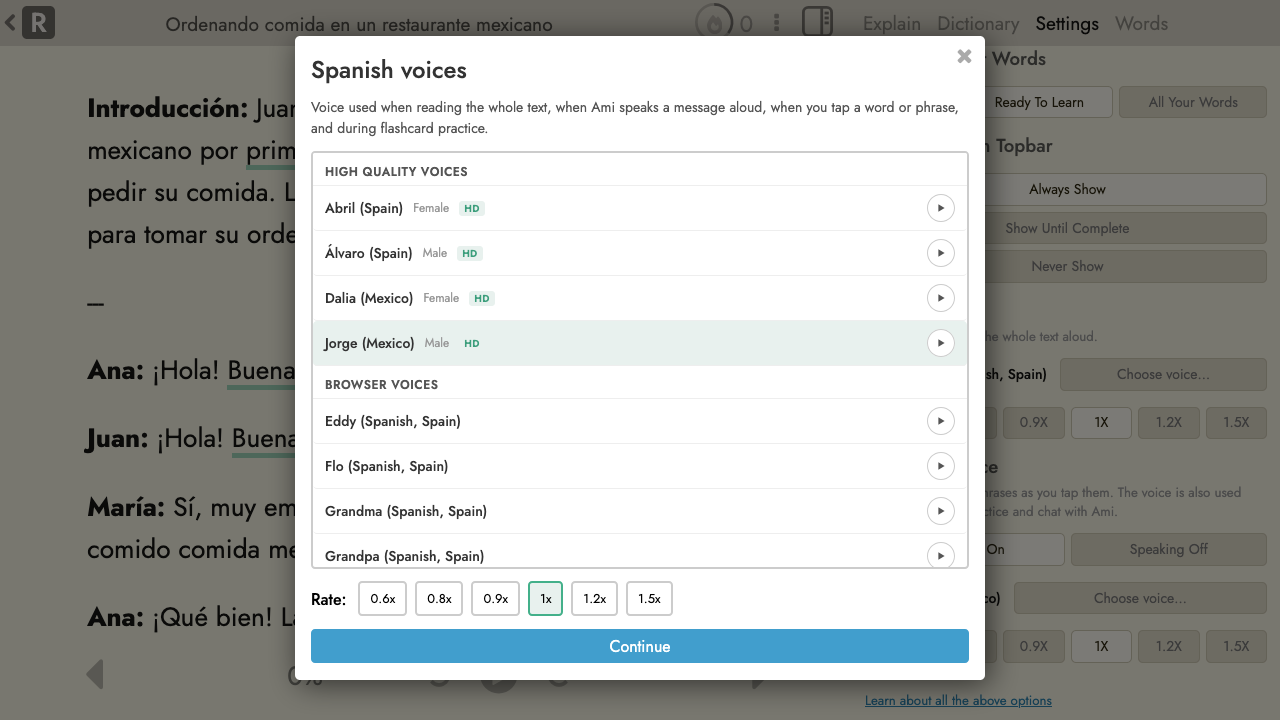
(English has separate voices for US, UK and Australia, and Chinese has both Mainland and Taiwan.)
What’s available on each plan:
- Free: browser voices only (whatever your device has installed).
- Premium: high quality Readlang voices for Auto-Pronounce. Browser voices for Read Aloud.
- Premium Plus: high quality Readlang voices for both Auto-Pronounce and Read Aloud.
The high quality voices are generated on Readlang’s server using the Microsoft Azure neural voice service. This is the same service that has powered the tap-a-word voice and the flashcard practice voice for years, but now available with a choice of specific voice and for whole-text Read Aloud too. Because the audio is generated on the server, the voices sound identical on every device you use, and they’re not affected by which browser or OS you’re on.
If you’d rather not upgrade for this, it’s worth knowing that Microsoft also ship these same voices for free inside the Microsoft Edge browser, so if you use Edge on desktop or Android, you’ll see them in the Read Aloud picker under “Browser voices”. (Unfortunately this isn’t the case for MS Edge on iOS, so this won’t work on iPhones or iPads.)
This was a pretty large rewrite under the hood so please let me know if you spot any problems, whether that’s a voice not playing, the wrong voice being used, the picker not appearing, or anything else weird.